Windows Security: Your PC's Personal Bouncer
Think of the Windows Security app as the built-in, 24/7 security guard for your Windows 10 or Windows 11 device. Instead of waiting for trouble to knock, it works silently in the background from the second you boot up, keeping digital party-crashers, viruses, and malware firmly outside the velvet rope.
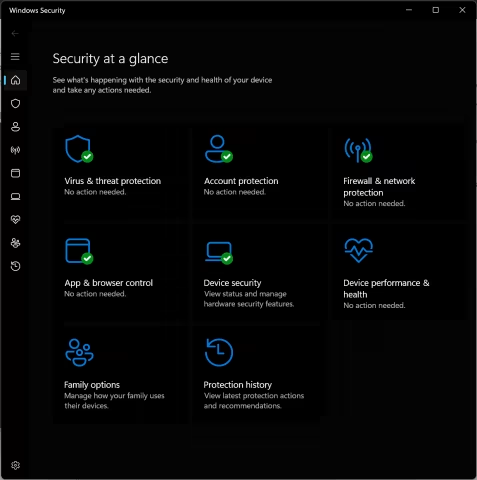
The Defense Trio
- Microsoft Defender Antivirus: The active patrol unit, constantly scanning files to catch and neutralize digital bugs before they can cause a headache.
- Windows Firewall: The digital gatekeeper, keeping a strict eye on the data moving in and out of your network to protect your privacy.
- Smart App Control: The ultimate vibe check, blocking shady or untrusted applications from running on your machine.
💡 Subscribed to Microsoft 365? If you have a Family or Personal plan, you also get access to the advanced Microsoft Defender app, which extends this cross-platform protection to your Mac, iOS, and Android gear too.
Quick How-Tos: Running the Show
🔍 Spot-Checking a Shady File
If a specific file or folder looks a bit sketchy, you don't have to scan your whole hard drive to check it.
- Right-click the suspicious item in File Explorer.
- Select Scan with Microsoft Defender. (If you are on Windows 11, click Show more options first to reveal the scanner).
⚡ The "Just in Case" Quick Scan
If your PC is acting a little sluggish or weird, drop a quick health check on your core system files:
- Open the app and head to Virus & threat protection > Quick scan.
- The Express Route: Click this link to jump right to it:
windowsdefender://quickscan/
🛑 Giving Real-Time Protection a Temporary Break
Occasionally, a trusted program installation or a developer tool might trip the alarm. You can temporarily tell the bouncer to step aside:
- Head over to Virus & threat protection > Manage settings (or use the shortcut:
windowsdefender://threatsettings/). - Flip the Real-time protection toggle to Off.
⚠️ Heads Up: While the guard is off duty, downloaded files won't be screened, leaving your system vulnerable. Don't worry about forgetting to turn it back on, though—Windows will automatically reactivate it after a short period to make sure you stay safe.
- Log in to post comments